Quick fixes
The panel did not appear
- Confirm you are on a normal
http://orhttps://webpage. Chrome-controlled pages and the Chrome Web Store do not allow injection. - If the icon is hidden, open Chrome's Extensions menu (the puzzle-piece icon), find CheckLinks, and select the pin control.
- Reload the page and click the CheckLinks toolbar icon again. When injection is blocked, CheckLinks provides best-effort toolbar badge and title feedback.
- If Chrome recently updated the extension, reload any tab that was already open.
A link is marked timeout or error
- Open the destination normally in a new tab.
- Retry the scan in case the failure was temporary.
- Check whether the destination requires a login, VPN, or bot challenge.
How to interpret an ambiguous result
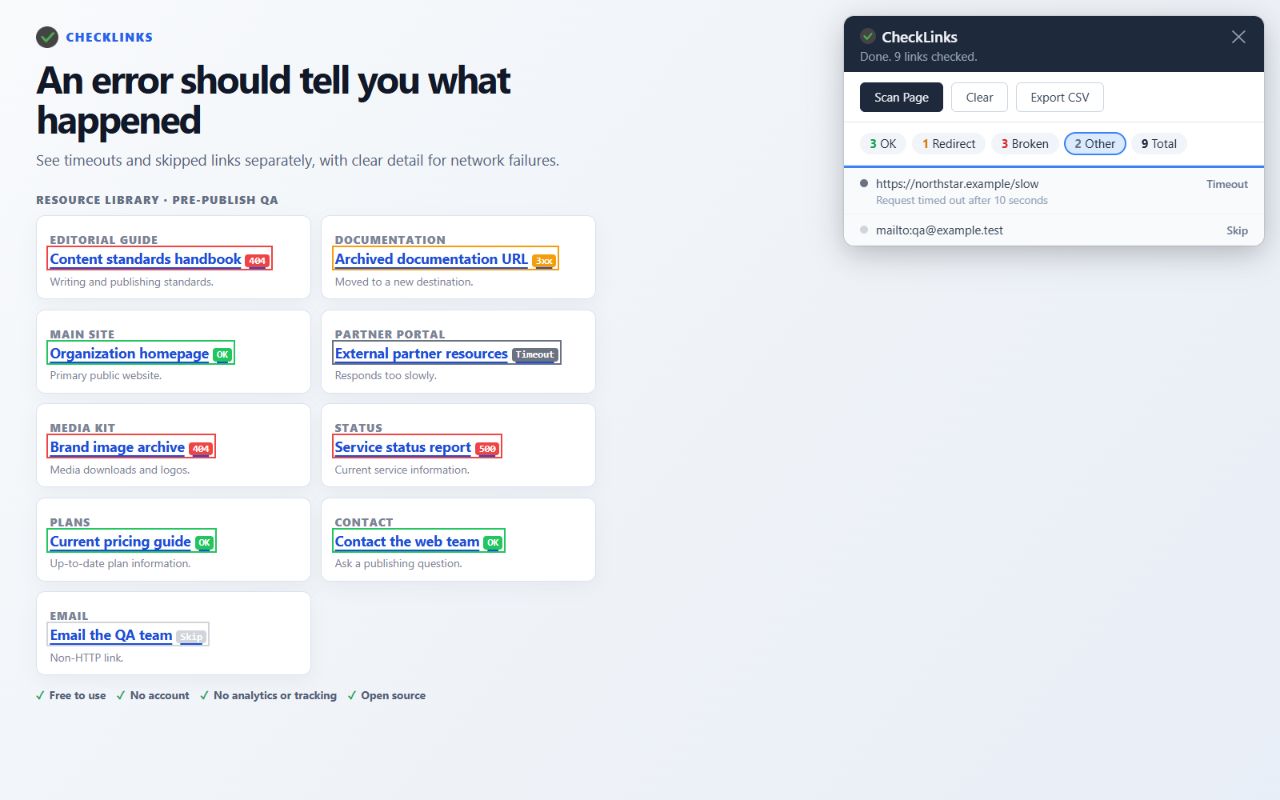
A status is an observation, not a verdict. A 404 or 500 response is strong evidence of a problem. 401 and 403 appear as Needs access, while 429 appears as Rate limited, under Other; these results are unverified and are not necessarily broken. A timeout, blocked response, or generic network error needs context because the destination may answer differently to a normal click or an authenticated user.
Known limitations
- One open page at a time. CheckLinks checks unique HTTP/HTTPS links in the current main document at scan time and groups duplicate occurrences. It does not crawl an entire website, inspect frames or shadow roots, or run scheduled monitoring.
- Restricted browser pages. Chrome does not allow extensions to inject into browser-controlled pages such as
chrome://URLs. The Chrome Web Store and some other protected surfaces may also restrict extension behavior. - No login cookies in link-check requests. CheckLinks omits credentials when it checks a URL. A private or session-dependent destination may therefore return a login page, redirect, Needs access, or blocked result even though it works after a normal signed-in click.
- Sites can block automated checks. Rate limits, bot protection, firewalls, VPN rules, browser policies, or other network conditions can produce a blocked, generic network-error, or timeout result. CheckLinks does not promise to identify a precise DNS, TLS, or connection-refused cause from a browser fetch failure.
- Ten-second timeout. A very slow destination can time out even if it eventually loads. Scans are throttled to be respectful, so pages with many unique links take longer.
- Skipped link types. Pure fragment links and non-web schemes such as
mailto:,tel:, andjavascript:are skipped and not tested. - Dynamic pages need a rescan. Links added after collection are not part of that run. Let the page finish loading, then use Scan Page again.
- Stop and Clear results. Stop cancels an active scan and retains its partial report. Clear results removes the report and all page overlays. Export all CSV exports every current result regardless of the selected filter, including a partial stopped scan.
- HTTP status is not content QA. A 2xx response does not prove the destination is the right page, that its content is current, that a form works, or that the page is accessible or indexable.
- Results are not a permanent workspace. Export the CSV before closing or navigating away if you need a handoff or record of the scan.
Permissions and privacy
CheckLinks uses activeTab and scripting access when you click its toolbar icon. Chrome grants broad website access so the extension can check destinations across domains; a page scan runs only when you activate it by clicking the toolbar icon. It has no account, telemetry, analytics, or third-party processing backend.
Requests go directly from your browser to the linked destinations. The visible report is held in memory; Clear results removes the visible report and overlays, and a new scan or navigation replaces the current in-memory scan state. Nothing is written to persistent storage. A CSV you save locally may contain the source page URL and link text.
Read the full CheckLinks privacy policy or inspect the open-source code.
Report a problem
If the steps above do not resolve it, open a GitHub issue with:
- your Chrome and CheckLinks versions;
- the result category and exact status text;
- steps that reproduce the problem; and
- a public example URL when possible.
Do not post private, signed-in, client, or staging URLs in a public issue. A redacted screenshot is often enough.
Support from the developer
I’m Mark Lee, the solo developer maintaining CheckLinks as a free, open-source project. Clear reproduction steps make it much easier for me to help.